Thursday, July 4, 2013

R12 Oracle Trading Community Architecture (TCA)

Oracle TCA:
  • Oracle Trading Community Architecture (TCA) is a data model that allows you to manage complex information about the parties, or customers.
  • The TCA  information is maintained in the TCA Registry, which is the single source of trading community information for Oracle E-Business Suite applications.
  • TCA is a data model not a module.
  • Oracle Trading Community Architecture (TCA) is a product owned by Oracle Accounts Receivable (AR), and is used extensively within the Oracle Financials and Manufacturing applications.
  • Oracle Trading Community Architecture (TCA) is Product Code = 1137.
  •  The TCA tables are tagged with the naming convention of HZ_ tables
Centralized Data Model in  TCA R12


Before TCA:
  • There are multiple customer definitions across the enterprise.
  • Difficult to track current and historical information about the customers.
  • Lack of support .
  • Difficult to understand relationships between customers and others (suppliers, partners, competitors)
After TCA:
  • Create a central repository for the entire E-Business Suite to store information relating to all members of a trading community versus separate tables for each member-Prospects, Customers,Suppliers/Vendors,  Contacts, Employees, Banks, Partners, Distributors etc.
  • Record complex business relationships between Trading Community entities (including 3rd party relationships).
  • Support all business models, industries, and geographies.

In R12 the TCA defines all as parties under HZ_parties so  for each it will create an Party_id which can be sahred across LE's & OU's .

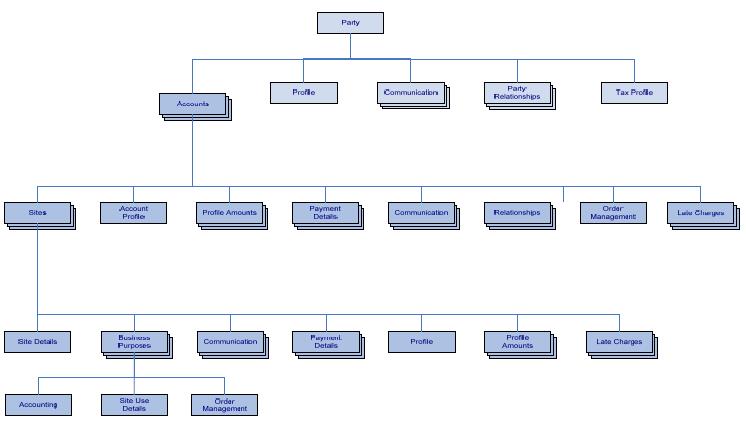
TCA Components:


Customer Intergration with R12 TCA:
  • Old Customer standard form that has been existing from ages is
  • finally gone.
  • Oracle introduced a brand new HTML user interface built using
  • Oracle Applications framework leveraging TCA that can be used to manage Customers, Accounts, Account Sites, etc.
    • New UI is fully backward compatible with the form
    • Has more features than the form
    • UI’s built using OA Framework can be personalized
  • New UI displays both Party level as well as account level
  • information which is separated into Customer Overview and Account Overview
  • Find Customer screen now uses DQM (Simple and Advanced Search Match Rules) similar to what you see in CustomersOnline or Customer Data Librarian.
  • After search, you can create new customer or see customer overview. From here you can add accounts or modify accounts and so on.
  • You can update customer information from customer overview
  • page.

    Party Vs Customer:
  • In the TCA Model the concept of "customer" is separted into 2 layers, The party layer and the Account Layer.
    • CRM Application are refering to Party Layer when they refer tocustomer
    • ERP Application on the other hand are referring to Account layer when they refer to Customer.
Customer Details  in 11i TCA:


Customer Details in R12  TCA


Supplier Integration with R12 TCA:

Release 12 Suppliers have moved to the TCA Data Model.


  • Supplier organizations are in TCA
  • Terms of doing business with the supplier are in Purchasing / Payables
  • Suppliers are now integrated with TCA.
  • Supplier entity level (party) level information can be viewed inOracle Customers Online.
  • Employees who were created as Suppliers for expense reimbursement now are associated with Person Parties.
  • Supplier organization, address, contact, phone, email etc. are all in TCA
  • Employees are already in TCA, Payables using the same employee records in TCA
  • New supplier maintenance UI using TCA UI components
  • Single repository for suppliers data
  • AR/AP netting
  • Oracle Payments serves as a payment data repository on top of the Trading Community Architecture (TCA) data model. The TCA model holds the party information. Oracle Payments then stores all of the party’s payment information and its payment instruments (including credit cards, debit cards, customer bank accounts, and supplier bank accounts).
  • Suppliers can have multiple addresses and each address can be used by an operating unit through a supplier site record.
    In Release 11i , creation of supplier record in Accounts Payable records were inserted into PO_VENDORS. In Release 12 these tables are now updated when creating a Supplier Record.


     1. Creating a supplier in AP now creates a record in HZ_PARTIES. In the create Supplier screen, you will notice that that Registry_id is the party_number in HZ_Parties.
    2. The table hz_party_usg_assignments table stores the party_usage_code SUPPLIER, and also contains the given party_id for that supplier. Running this query will return if customer was a SUPPLIER or CUSTOMER
    3.Payment related details of supplier are also inserted in  iby_external_payees_all as well as iby_ext_party_pmt_mthds
    4. The master record that replaces PO_VENDORS is now AP_SUPPLIERS. PO_VENDORS is a view that joins AP_SUPPLIERS and HZ_PARTIES.
    5. The table that hold mappings between AP_SUPPLIERS.VENDOR_ID and HZ_PARTIES.PARTY_ID is PO_SUPPLIER_MAPPINGS. Query by party_id.

    The following sql  can be used to find out Party details from Supplier tables
    SELECT DISTINCT a.party_number, ps.party_site_number, a.party_id,


    'CUST-' ||a.party_id||'-'||ass.org_id AS customer_ref,

    'ADD-'||ps.party_site_id||'-'||ass.org_id AS address_ref,
    ps.party_site_id,
    ass.address_line1,
    ass.city, ass.state, ass.zip, ass.country,
    a.orig_system_reference AS party_ref,
    a.party_name AS customer_name,
    ass.org_id
    FROM ap_suppliers ap,ap_supplier_sites_all ass,
    hz_parties a,hz_party_sites ps
    WHERE ap.vendor_id = ass.vendor_id
    AND a.party_id = ap.party_id
    AND ps.party_id = ap.party_id
    AND ass.party_site_id = ps.party_site_id
    AND a.party_name = ap.vendor_name
    and a.party_id = 12345 -- Please pass your Party_id or Comment this line
    and NOT Exists (select 1 from hz_cust_accounts a
    where a.party_id = a.party_id);


    TCA Supplier:


    TCA Supplier Site:

    In R12 in the Suppliers Entry screen all the addresses in the address book are available to all responsibilities regardless of the Operating Unit the responsibility is attached to.
    The supplier addresses come from HZ_LOCATIONS, which is not Operating Unit specific
    Therefore all the addresses from the suppliers address book are available in the suppliers screen regardless of the supplier sites they may be attached to, what is not available are the sites attached to those addresses if the security profiles does not allow the user on that responsibility access to those operating units.

     In the supplier address book if the address is attached to a site; for any given responsibility, only the sites that responsibility has assigned to via the MO Profile Options / Security Profile will be shown; if the site that the address is attached to is restricted for that responsibility, that site will not be shown, however, the address is always shown.

    Banks Model in  R12

    New Bank Account Model
    • Central place to define internal bank accounts
      • Keep track of all bank accounts in one place
      • Explicitly grant account access to multiple operating units/functions and users
    • Multi-Org Access
      • In the new model, bank accounts are owned by Legal Entities with the option to grant account use to Operating Unit (Payables, Receivables), Legal Entity (Treasury), Business Group (Payroll).
    • Reduce number of access points to manage bank accounts
      • Centralized user interface
    • Improve visibility and control of bank accounts
      • Multi-org access control
    • Simplify bank reconciliation
      • Single bank statement can be reconciled across multiple Operating Units
    • Increase percentage of automatically reconciled transactions
      • Bank account level reconciliation parameters add flexibility.


      Three key CE tables now as

      1. CE_BANK_ACCOUNTS
      ==> Stores bank account attributes
      2. CE_BANK_ACCT_USES_ALL
       ==> Stores the bank account use attributes specific to Operating Unit (AR, AP) and Legal Entity (Treasury).
      3.CE_GL_ACCOUNTS_CCID 
      ===>Accounting data pertaining to the bank account use
    Legal Entities in R12 TCA: 


    • Legal entity is created as a party of party type ORGANIZATION or PERSON
    • An establishment is created as a party of party type ORGANIZATION.
    • TCA creates a new classification category called “Business Function”.  It is used mainly to model what business functions a party can perform in E-Business Suite
    • Modeling legal entities and establishments in TCA, classification code “Legal Entity” and “Establishment” are created under the “Business Function” class category.
    • An establishment is created as a party and always link to a party that is classified as a legal entity through the relationship model.
    HRMS Intergration with R12 TCA: 
    • TCA creates the global view of person
    • TCA enables you to store person Information at a corporate level
    • Person is stored as party in TCA
    • Comprehensive duplicate person check when entering a new person – Across the business group
    • Propagate some information entered in one business group to the record in the other business group
    • PER_ALL_PEOPLE_F.PARTY_ID is a foreign key to the HZ_PARTIES table, an integral part of Oracle's "Trading Community Architecture" (TCA).
    If you create a supplier for an employee, you cannot change the Supplier Type from an Employee. The TCA Person Party that represents the employee is also used to represent the supplier. TCA does not allow you to change a Person Party into an Organization party. For standard suppliers, you can update the Supplier Type after the supplier has been created. However, you cannot change it to Employee.

    Within the HRMS application we carry the PARTY_ID value within some of the  tables as a foreign key. Conversely the TCA product carries the PERSON_ID value within some of their tables as a foreign key  within column PERSON_IDENTIFIER.

     Responsibilites in TCA:
    • Trading Community Manager

    Reference My Oracel Support:
    Note#:159393.1,1447883.1,230753, 1409305.1, 1160816.1

    Sunday, December 25, 2011

    How to update the Period status to Future-Enterable , can not see new peiords on the open/.close form

    Issue: Not able to view future enterable periods.when a user opens the perior period (eg Dec11) before we defined the next year calendar when you open the period users will not be able to see the future entereable periods. i.e We created new periods after the last period defined was opened. Now we can not see those new periods on the Open/Close form.

    Solution:
    1.Make sure that the periods are setup for the next 2years.
    2. Query the Set of books setups  and make a note of the number of future periods.
    3. When you open the next period it will automatically mark any future periods as future enterable to the number of periods given in gl_sets_of_books Future_Enterable_Limit. 
    If you didn't set up next years calendar before opening the last period of this year there is no mechanism in applications to open this. It will have to be done using sql

    11i Fix:
    ======
    1) Obtain SET_OF_BOOKS_ID and number of future enterable periods from GL_SETS_OF_BOOKS as follows:
    select set_of_books_id, future_enterable_periods_limit, latest_opened_period_name
    from gl_sets_of_books
    where name = '&setofbookname'

    a. make sure you have future_enterable_periods_limit greater than zero if not stop.
    b. make sure that the latest open period name is still in the current year if not stop

    2) select closing_status,period_name
    from gl_period_statuses
    where closing_status = 'N'
    and set_of_books_id = &set_of_books_Id
    and application_id=101;

    a. Make sure the status is 'N' do not change it if its not 'N' or you will get corruptions

    3) Update Period status to Future-Enterable as follows:
    update gl_period_statuses
    set closing_status = 'F'
    where period_name = '&PERIOD_NAME' - period name you wish to update
    and application_id = 101
    and set_of_books_id = &set_of_books_Id
    and closing_status = 'N';
    Commit;

    R12 Fix:
    ======
    a) Obtain LEDGER_ID from GL_LEDGERS as follows:
      SELECT ledger_id, name  FROM gl_ledgers
      WHERE name like '%bookname%';

    b) Make sure the status is 'N' do not change it if its not 'N' or you will get corruptions.
    select closing_status, period_name
    from gl_period_statuses
    where closing_status = 'N'
    and ledger_id = &ledgeridabove
    and application_id=101;
     
    c) Update Period status to Future-Enterable as follows:
    UPDATE gl_period_statuses
    SET closing_status = 'F'
    WHERE period_name = '&PERIOD_NAME_you_wish_to_update'
    AND application_id = 101
    AND ledger_id = &ledgeridabove
    AND closing_status = 'N';
      
     Refereces Mysupport:
    1.Note# 135433.1-General Ledger FAQ for Open/Close Period

    Monday, August 15, 2011

    R12.1.X-Over all Changes (Business Group,L.E, Locations , Address....)

    Version 12.1.3 has some significant differences to earlier R12 versions impacting the behavior of the HR Locations records (which are important for the multi-org setup)
     
    Business Group (used for employees and HR functions, no difference to 11I
     
    Chart of Accounts – basis for all other operational and financial setups) – no difference in setup and structure.

    Legal Entity – New  Legal Entity Configurator Responsibility in Web-Form)  - Lots of different setup and decisions to be made (very different from 11I)
     
    Create Ledger - New  Accounting Setup Manager Responsibility in Web-Form Lots of different setup and decisions to be made (very different from 11I). Formerly GL Set of Books.
     
    Create Operating Unit and assign to Ledger New  Accounting Setup Manager
    Responsibility in Web-Form Additional restrictions and impacts, differences between R12 and 11I.

    • Responsibilities span multiple Operating Units for transactional capability

    • Legal Entity has now become relevant

    • UMX – User Management has a implicit role in some tasks

    • Multiple forms are now Java/HTML based; often the application jumps between these

    • XML Publisher - now BI Publisher is all over the place

    • You have to start with creating a Legal Entity to start a Ledger definition

    • You cannot use the same name for a Legal Entity

    • The key is the Tax ID Number (cannot be re-used)

    • You cannot delete these from the system, you can end-date them

    • Cash Management now “owns” Banks!

    • You need to log in to Cash Management to create Bank and Account Information (Note: 415529.1)

    • You MUST assign the Cash Management responsibility using UMX – User Management

    • This MUST be done using the SYSADMIN User, not the responsibility!

    • Customer form has changed drastically

    • The Customer form has been moved to the TCA architecture

    • Payment Manager is a new concept for Payment processing.

    1. Location Addresses” or “Locations” – Terminology and challenges in visibility of data from both angles Java and Web-Form

    2. No easy way to see table used in Web-Form

    3. No easy way to see total number of records in Web-Form

    4. Locations are not consistently visible across Java and Web Forms. We are not sure what it depends on. Possibly I can see in Web form only those that have been entered in Web-Form. In Java I can see all. Possible strategy is to enter what you can in Web-Form, especially locations, organizations

    5. Locations in Java and 11I are called Addresses in Web-Form of 12

    6. Business Group Needs Location (HR_Location)

    7. Address Validation (HR Address Format and Validation Changes in 12.1.3 & one of patch - Patch 9871990)

    8. Data entry through Java form or Web-form?

    9. Address default United States – will cause validation (if site profile option is set for HR purpose).

    Reference:
    1104887.1 : How to Setup a Legal Address Using HR Address Formats in R12 Legal Entity Configurator
      1064366.1 :How to Add a New Legal Entity, Ledger and Operating Unit for a New Country

    Saturday, March 5, 2011

    Revaluation

    Revaluation:
    Revaluation adjusts liability or asset accounts that may be understated or overstated at the end of a period due to a significant fluctuation in the exchange rate between the time the transaction was entered and the end of the period. It restates balances using proper period end rate.
    Revaluation is the process of revaluing accounts that have transactions denominated in foreign currency. This is done for the account balance, not individual transactions. Revaluation can be done on any account, but typically,this is done for balance sheet accounts, whose balance is made up of open transactions (ie. Accounts Payable, Accounts Receivable). Revaluation reflects the change in conversion rates between the date of the transaction and the date of the balance sheet.


    When revaluation is run, a journal entry is created that either increases or decreases the functional currency amount for that account, based on the fluctuation of the exchange rate. The offset for this journal is a predefined Unrealized Gain/Loss Account.


    The revaluation adjustment is created in the functional currency - this is where the fluctuation is. Remember, the foreign currency of the transaction will stay the same: it is the functional currency equivalent that fluctuates.


    When looking at the revaluation entry on the Enter Journals form, Entered Debits/Credits should be equal to zero. The Converted Debits/Credits should be the revaluation adjustment - there should be an amount here.
    You can specify period-to-date (PTD) or year-to-date (YTD) to revalue income statement accounts using PTD or YTD balances by setting the profile option 'GL: Income Statement Accounts Revaluation Rule'.

    The following values are available:
    PTD: Only PTD balances will be revalued for income statement accounts.
    If you select PTD, the Revaluation program only revalues the PTD balances of your income statement accounts but continues to revalue YTD balances for balance sheet accounts.

    Income Statement Accounts:

    Are revalued on the basis of the PTD or YTD balances, in accordance with the
    Income Statement Rule profile option


    PTD Script:
    select code_combination_id,TRANSLATED_FLAG, CURRENCY_CODE,
    PERIOD_NET_DR, PERIOD_NET_CR,
    PERIOD_NET_DR_BEQ, PERIOD_NET_CR_BEQ,
    from GL_BALANCES
    where CODE_COMBINATION_ID = 9999
    SET_OF_BOOKS_I D = 123
    AND PERIOD_NAME = MON


    YTD: Only YTD balances will be revalued for income statement accounts.
    If you specify YTD, then the revaluation program behaves as it did before, revaluing YTD balances for both your income statement and balance sheet accounts, the balance sheet is always revalued using the YTD method


    YTD Script:
    select code_combination_id,TRANSLATED_FLAG, CURRENCY_CODE,
    PERIOD_NET_DR, PERIOD_NET_CR, BEGIN_BALANCE_ DR , BEGIN_BALANCE_ CR ,
    PERIOD_NET_DR_BEQ, PERIOD_NET_CR_BEQ,
    BEGIN_BALANCE_DR_BEQ,BEGIN_BALANCE_ CR _BEQ
    from GL_BALANCES
    where CODE_COMBINATION_ID = 9999
    SET_OF_BOOKS_I D = 123
    AND PERIOD_NAME = MON.

    When you reverse the revaluation entry, General Ledger defaults the reversal period to the next period. You can change the reversal period by choosing More Actions from the Enter Journals form. Choose the period you want to reverse the revaluation in. 
    You can rerun revaluation more than once in a period. Based on the Revaluation calculation, any additional journal entries posted after the initial Revaluation journal has been posted, will be picked up in the balances that are subsequently revalued in that same period. The subsequent Revaluation journal entry will then represent the incremental change in the revalued balance, due to the additional journal entries posted after the initial Revaluation.
    Choose Revalue. General Ledger launches a concurrent process to revalue your account balances.
    The process names your revaluation batch in the following format: Revalue <Period Name> <Concurrent Request Date> <Concurrent Request Time>; for example, Revalue JAN– 11 07– MAR– 11 15:00:00.

    Use the Revaluation Execution Report to review the status of your account revaluation. General Ledger automatically generates this report when you run revaluation.

    Revaluation Execution Report:

    Review the details of your account balance revaluation and the journal batches created after running revaluation. The report includes the currencies and revaluation rates used to revalue your accounts, the unrealized gain/loss account in which you recorded net gains and losses, and the range of accounts revalued. The report also prints the names of batch and journals General Ledger creates for each foreign currency when you revalue your accounts, as well as the total debits and credits of the created batch. General Ledger automatically generates this report when you run revaluation.

    Profile options related to Revaluation.
    1.GL Revaluation: Days to Roll Forward Daily Rates
    2.GL: Income Statement Accounts Revaluation Rule
    3.GL Revaluation: Tracking by Cost Center
    4.GL Revaluation: Validate Gain/Loss Accounts
    5.GL/MRC Revaluation: Use Primary Book Currency Instead of Entered Currency
    6.Inflation Accounting Revaluation tolerance

    GL Revaluation: Days to Roll Forward Daily Rates:
    Use this profile option to determine how many days into the past the Revaluation
    program will go to find a daily rate for the currency, when Revaluation is
    being run  using Daily Rates. If no rate is defined for the date the Revaluation is
    being run for,  General Ledger will use this profile to determine how many days in
    the past it can go  to in order to find a rate. If a rate is found, this is used in the
    revaluation. If no rate is  found, revaluation for that currency will fail, and the
    execution report will show  “Missing Rate”. The default for this profile is 0 –  GL
     will only use the  rates specified for the date requested in the program submission.
    You can only review  this profile option at the user level. System Administrator
    can set this profile option at  the site, application, or responsibility level.

    GL: Income Statement Accounts Revaluation Rule:
    Use this profile option to select either period-to-date (PTD) or year-to-date (YTD) income

    statement account balances for revaluation.


    The following values are available:
    PTD: Only PTD balances will be revalued for income statement accounts.
    YTD: Only YTD balances will be revalued for income statement accounts.


    The default for this profile option is YTD. You can only review this profile option at the
    user level. System Administrator can set this profile option at the site, application, or
    responsibility level.

    Saturday, February 26, 2011

    GL Translation Process

    What is Tranlation:
    Foreign Currency translation is the process that restates functional currency account balances in another currency.
    Translation converts balances from your functional currency to a foreign currency, you can translate both actual and budget balances. if you have average balance processing enabled the system can translate average balances as well.
    Tranlation is frequently used to prepare financial reports for consolidation into global financial statements. It is also used in highly inflationary economies to produce reports in a more stable currency.
    When do you run translation:
    Translation should be run at the end of the period, after all transactions have been processed and reconciled.
    How does the system transalte balances:
    - Assets and liabilities  are translated by multiplying the YTD balance by the period end
    How do I check that the translation has been carried out correctly?
    Reconciliation of the Cumulative Translation Adjustment (CTA) Account:
    1.Take the total of your P&L (Revenue and Expense) accounts and multiply this amount by the period average rate defined.
    2.Take the total of assets and liabilities and multiply this amount by the period end rate.
    3.Take the total of your retained earnings and use the historical amount or multiply by historical rate (whichever way you have defined it).
    4.Add 1,2 and 3 together. This should equal the amount in your translation adjustment account.
    5.Make sure no other entries have been made to the account. If there has been, they would have to be reversed in order to reconcile the amount.
    Translation using Historical Amounts.?
    In some situations, you may want to use Historical Amounts to translate certain accounts. However, when Historical Amounts are used in the very first period ever translated, this creates a large Rate Adjustment for the same amount which distorts the Cumulative Translation Adjustment account.
    The translation code cannot distinguish between how much of the Historical Amount defined is attributable to the Beginning Balance and how much is attributable to rate fluctuation in the period, so the entire amount is thrown into the Rate Adjustment bucket.
    For example, in the first period ever translated where there is no period activity for the account, when you use Historical Amounts, you may see:
    Beginning Translated Balance = zero.
    Rate Adjustment = the Historical Amount defined.
    Ending Translated Balance = the Historical Amount defined.

    By definition, when translating on YTD basis, the Historical Amount defined is equal to the YTD Translated Balance. You would like to know how to correct the situation so that you do not have a large Rate Adjustment in the first period translated.
    The workaround is to "back into" an Historical Rate, based on the Historical Amount that you want to achieve for the period. You should use this Historical Rate in the first period ever translated, then in the subsequent months use the appropriate Historical Amount. This eliminates the large Rate Adjustment in the first period ever translated.

    Does the Translation of Owner's Equity Accounts comply with FASB 52?
    The profile option GL: Owner's Equity Translation Rule should be set PTD to comply with FASB 52.

    Set to PTD:
    Ending Translated balance = Beginning Translated Balance +
    (Current month activity in Functional Currency * Current Month Historical Rate)

    Set to YTD:
    Translated Currency YTD = Functional Currency YTD * Rate
    YTD translation of Owner's Equity Accounts calculation does not take into account the historical rates that were in effect at the time of each transaction in the account.

    How to change Translation from Historical to Period Rates?
    1. Delete the historical rate from the Historical Rate Form.
    (Note if you have a Prior Historical Rate - this will have to be deleted. You may have a prior historical rate if you deleted the historical rate and reran translation without purging the original translations using the original historical rate).
    2. Define a period-end rate in the Period Rates form.
    3. Purge translated balances to get rid of the original historical rate.

    The amount used depends on whether the account to which the historical rate or amount applies is a revenue/expense, asset/liability, or owners’ equity account:
    Revenue/Expense: The amount is treated as translated net activity for the period.
    Asset/Liability: The amount becomes the YTD translated balance for the
    account.
    Owners’ Equity: If the profile option GL: Owners Equity Translation Rule is set
    to PTD, the amount is treated as translated net activity for the period. If the profile
    option is set to YTD, the amount becomes the YTD translated balance for the
    owners’ equity account.

    Restating Balances Previously Translated with the Year–to–Date Rule
    Older versions of General Ledger always translated owners’ equity accounts using the
    Year–to–Date rule. If you subsequently switch to the Period–to–Date rule, your owners’ equity accounts will be translated using this rule for new translations only. Previously translated owners’ equity balances will not change. If you wish, you can restate your previously translated owners’ equity balances.

    To restate your previously translated owners’ equity balances using the Period–to–Date rule:
    1. Purge the old translated balances for each period to be restated.
    2. Change the GL: Owners Equity Translation Rule profile option to PTD.
    3. For each period to be restated, use the Historical Rates window to delete the rates used to translate owners’ equity accounts, as follows:
    -- Retained Earnings: Delete any non–historical rates.
    -- Other Owners’ Equity accounts: Delete any period rates.
    4. Run translation. Your owners’ equity balances will be translated using the PTD rule.
    Note: If you change a period rate after you’ve already run translation, you must retranslate your account balances for the period whose rate has changed.

    Prior: General Ledger uses the most recently entered historical rate or amount for
    your balance sheet accounts, and assigns it the rate type Prior. If you have average
    balance processing enabled, General Ledger rolls this historical rate or amount
    forward using the rate type Prior.

    Period: If you have never defined a historical rate or amount for an owners’
    equity account, General Ledger uses:
    The period– average rate if the profile option GL: Owners Equity Translation Rule is set to PTD.
    The period-end rate if the profile option GL: Owners Equity Translation Rule is set to YTD.

    Calculated: This rate type is only used when the profile option GL: Owners
    Equity Translation Rule is set to YTD. It is only applicable to the first period of
    your fiscal year. If you have never defined a historical rate or amount for your
    retained earnings account, General Ledger calculates a rate and assigns it the rate
    type Calculated.

    Profile related to Translation:
    GL: Owners Equity Translation Rule
    Specify the rule General Ledger follows to translate owners' equity accounts when you
    have not entered specific historical rates or amounts.
    The following values are available:
    PTD: The Period-to-Date rule is used to translate owners' equity accounts. For
    each period for which you translate owners' equity accounts, the historical rate is
    set to the period-average rate.
    YTD: The Year-to-Date rule is used to translate owners' equity accounts. For
    each period for which you translate owners' equity accounts, the historical rate is
    set to the period-end rate.
    The default value for this profile option is PTD.

    GL Transaltion : Revenue/Expense Translation Rule:
    Revenue and Expenses are translated according to the GL Translation: Revenue/Expense Translation Rule Profile setting (PTD or YTD). If this is not set then Revenue and Expenses are translated by multiplying the PTD balance by the Period Average Rate

    Purge, Transaltion and Retranslation:
    Retranslation again will be done on the basis of the status column in the gl_translation_statuses table. If the status is current, there will be nothing that will be translated.
    Translation will run in 2 phases. First phase gets the out of date records Translation Status - C.Here it translates only those records, which are out of date due to some adjustments.if it is the account adjustment all the foreign currencies need to be translated again. If it is a rate adjustment only that currency needs to be translated Second phase gets the records for periods, which have never been translated.

    As an Example, if the Functional Currency is USD and translation is done into GBP, INR and CAD. If there is a change in the accounts in the functional currency, then Translation needs to be run for all the currencies. On the other hand, if there is a change in period rates or Historical Rate/ Amount for any currency, it will be sufficient if Translation is run for that particular currency.
    Purge means Translation status for the period will always be Never Translated for the periods for which it is run. It will re-state the values in the gl_translation_tracking table. It essentially is translating every record whether or not that is current or out of date as the foreign currencies will not be there. In a way it can be said to be direct phase 2 of translation.
    Running translation for the first time
    You cannot translate in the first period in your calendar.
    The first Consolidation must be performed as YTD not PTD for two reasons:
    1.PTD will not generate a correct Opening Balance figure.
    2.The Consolidation Journal maybe unbalanced by the amount of the CTA adjustment if there are Accounts defined with a Historic Conversion Rate.


    Source: My OracleSupport.

    R12 Legal Entity Configurator

    The Legal Entity Configurator allows you to define legal entities and establishments in the Oracle system to achieve legal compliance for business activities handled by the Oracle E-Business Suite.

    In Oracle Ebusiness Suite 11i, the Legal Entity is tied closely to a set of books and operating Unit, so your Legal Structure has to be defined in the way you set up your apps partitions (OU, Set of Books etc.).

    In R12 financials breaks away from that with the introduction of the Legal Entity Configurator allowing you to model your Legal Structure separately from the partitions in your ERP system. Then you mark certain items with an owning LE, rather than use the OU or set of books to derive the LE.

    A Legal Entity is an entity identified through the registration with the legal authority. A Legal entity represents a legal company for which you prepare fiscal or tax reports. You assign tax identifiers and other Legal entity information to these types of organizations.
    Legal Entities have the right to:
    •Own property (assets, inventory, receivable, other LEs)
    •Trade (borrow, sell, buy, incur expenses, employ)

    Responsibility to:
    •Repay debt (liabilities, equity)
    •Pay Taxes
    •Account for themselves (legal reports, audits) .
    What we map Legal Entities to
    1. Accounting Structures - Balancing Segment Values and Ledgers
    2. Tax Rules in eTax - Who I am and where I am registered/located determines what tax I need to pay
    3. Bank Account - Who owns that bank account and the cash in it
    4. Payables and Receivalbes Invoicing - the owner of that transaction, sometimes referred to as LE stamping
    5. Intercompany Accounts and Intercompany Processing Rules

    The Features for Legal Entity are:
    1.Legal Entity Setup
    2.Establishments Setup
    3.Legal Entity Search
    4.Legal Authorities and Jurisdictions and
    5.Legal Associations

    Legal Entity setup : Is the main component within Oracle’s Legal Entity Solution to meet the enterprises’ global Legal requirements. To be able to operate, a Legal Entity may be required to register with different Legislative Authorities depending on the Legal Entity’s activity and locations in order to comply with the law in the territory of operation. Users will use the Registration User Interface pages to create registrations for a Legal Entity in the Oracle System. The Registration User Interface will enable users to enter required registration related information that is needed for legal compliance in a given Oracle Applications instance.

    Establishments are made up of a Main Establishment and additional Establishments. Conceptually, the Legal Entity and Main Establishment are tightly coupled. Therefore, every Legal Entity must have a Main Establishment. Whenever a Legal Entity is created, a Main Establishment will automatically be created. A main Establishment is always located in the same Legal Entity’s country. Legal Entities may or may not have additional Establishments.

    Additional Establishments are required only in countries where other Legal Entity location needs to register with legal authorities (e.g. India, Brazil, Germany). Some Establishment attributes are required to provide information for current functionality (e.g. Registration Number- SIRET for DAS2 in France). Additional Establishments may or may not be located in the Legal Entity’s country. Main Establishments as well as additional Establishments may follow different set of rules if they do business in different activities or are located in different areas.

    Legal Entity Search page : The purpose of the Search Page is to manage Legal Entities, Establishments, and Parties. In order to avoid duplication, users can identify existing Parties of type Organization and update them to be Legal Entities or Establishments.

    Users will be able to:
    •Update existing Legal Entities or Establishments
    •Update an existing Organization Party to be a Legal Entity or a Establishment
    •Configure a Trading Community Architecture Party type of Organization as a Legal Entity or Establishment.

    The Legal Entity Search Page only displays Trading Community Architecture (TCA) parties of type “Organization.”

    All Legal Entities must be registered against a Jurisdiction that is governed by a Legal Authority. The Jurisdiction is a formulation of a legislative category and territory to which legal rules are grounded. The Legal Authority is an executive power that operates within the jurisdiction to enforce legal rules, collect fees/taxes, and make financial appropriations within the territory. In order to support the legal world on which the legal entity is founded, both the legal authority and jurisdiction is clearly defined as part of the Legal Entity Solution.

    Legal Associations is part of the Legal Entity Solution which consolidates and provides a centralized solution for Legal Entity related data in Oracle Applications. Various processes like Tax calculation and intercompany transaction processing are dependent on the knowledge of the owning Legal Entity or Establishment. Given that the legal context is not directly stated in Applications transactions today, Legal Associations provides a method to derive the Legal Context by building associations between business and accounting information that are available on transactions and Legal context. Legal Associations will also provide the ability to build associations between Legal Contexts.

    A legal entity is the organization unit level at which you report taxes and maintain the corporate banking relationships. The LEGAL_ENTITY_ID column is added to the transaction tables in 12, allowing the ability to track transactions at a Legal Entity level. In R12, you assign a Legal Entity to a Ledger instead of to a Set of Books. It is recommended that you assign one (or more) balancing segment values in your chart of accounts to a legal entity.

    Territory:
    The territory where the legal entity is registered. This list displays territories at the country level and shows only territories for which the identifying jurisdiction has been defined. Therefore, the territory determines the identifying jurisdiction to which the legal entity needs to register. The territory also determines the context for the information that needs to be displayed in the General Information region. For Canada the BIN number is one such field.

    Organization Number:
    The organization number is a number used to identify organizations. This field is displayed only when the HZ: Generate Party Number profile option is set to No. In this case, the main establishment organization number is built as a concatenation of the legal entity organization number and ETB (establishment). Otherwise it is not displayed and is generated automatically. For example, if the legal entity organization number entered is 12536, the establishment's organization number will be 12536ETB.

    Legal Entity Identifier:
    The identification number used to uniquely identify the legal entity. It is displayed only when the LE: Generate Legal Entity Identifier profile option set to No and you must enter it manually. If this option is set to Yes, the legal entity identifier is generated automatically based on the International Organization for Standardization (ISO) code of the country of registration, plus the registration number of the identifying jurisdiction, which qualifies an entity to be a legal entity in that particular territory.
    Example:
    Territory: Singapore
    ISO Country Code: SG
    Registration number of the identifying jurisdiction (RCN number) = 23231 (this is a user enterable field)

    If the profile option is set to Yes, the legal entity identifier will be SG23231, otherwise you are required to enter the legal entity identifier manually. If you enter an identifier that is not unique, an error message will be displayed.

    Registration Number:
    The identifying jurisdiction determines the prompt for the registration number (in the U.S., the EIN/TIN). The Establishment registration prompt is displayed if it is defined for the identifying jurisdiction. In this case the main establishment is created with this registration number. The registration number must be unique within a jurisdiction.

    Legal Address:
    A Legal Address is the address a legal entity uses to register with a legal authority. A legal entity may use different addresses for different authorities and hence, may have more than one registered address. This legal address must be located within the territory governed by the legal authority.

    Oracle Legal Entity Configurator has adopted the use of the HR Address formatting and validation Model

    Place Of Registration: Optionally enter the place of the legal entity registration.
    Inception Date Optionally enter the date of legal entity registration (creation). It can be on or before the system date and on or after legal entity's inception date but must not be a future date.

    Source: My OracleSupport:
    Note:396752.1Oracle Legal Entity Configurator Documentation Resources, Release 12
    NOTE:1104887.1 - How to Setup a Legal Address Using HR Address Formats in R12 Legal Entity Configurator

    Saturday, November 20, 2010

    How are the Transactions populated in the RA Interface table

    Invoice processing in Order Management is the process by which data from Orders and Returns is interfaced to Oracle Receivables.

    1. After shipping the order, the order lines get eligible to get transferred to RA_INTERFACE_LINES_ALL.
    2. Workflow background engine picks those records and post it to RA_INTERFACE_LINES_ALL. This is also called Receivables interface that mean information moved to accounting area for invoicing details.
    3. Invoicing workflow activity transfers shipped item information to Oracle Receivables. At the same time records also goes in the table RA_INTERFACE_SALESCREDITS_ALL which hold details of sales credit for the particular order.
    4. Sales order line status is closed and shipping line status is interfaced then RA_INTERFACE table will get populated.
    5. Once all the data is in ra_interface_lines_all, Then Auto-invoice program imports data from this table which get affected into this stage are receivables base table. At the same time records goes in ra_customer_trx_all and ra_customer_trx_lines_all.


    The Order Management Invoice Interface activity interfaces sales order line details to Oracle Receivables. Order lines with any of the following conditions are not eligible for Invoice interface:
    1. Item with Invoiceable attribute set to No or
    2. Item with Enabled Invoicing attribute set to No or
    3. Included item type or
    4. Configure item type or
    5. Item inactivated.

    For all conditions listed above, the Invoice Interface workflow activity is completed with a status of Not Eligible.

    i) Order Hold: Order or return lines will not be interfaced to Oracle Receivables if there is a hold on the line or on the order. When the invoice interface activity encounters an order or return line with a status of On Hold, the Invoice Interface workflow activity will also complete with a status of On Hold. You can perform the manual ‘Progress Order’ concurrent program to continue with the order processing, or the order or return line will automatically be re-evaluated at a 12 hour interval after the hold is released.

    ii) Detailed Flow Statuses for Invoice Interface:
    These statuses/messages help you understand when the line is not progressed from invoice interface because of a specific reason.

    When using the header level invoice interface, the order flow status is set to identify the Header invoice workflow status. For the header level only, the following statuses are set:
    - Awaiting Invoice Interface -- On Hold
    i) When at least one order line/header is on hold
    - Awaiting Invoice Interface -- Incomplete Data
    i) When at least one order line is not able to process due to incomplete data
    -Invoice Interface – Complete
    i) When all the lines are processed.